How to Change Ford Startup Screen F150 Sync 4: Essential Guide
Imagine sliding into the driver’s seat of your Ford F-150, ready to tackle the day, only to be greeted by a startup screen that feels… generic. While the F-150 is a marvel of engineering and capability, those initial moments with the Sync 4 system can feel a bit impersonal. Many owners, myself included, often wonder if there’s a way to stamp their own identity on this powerful truck right from the get-go.
The good news is that personalizing your F-150’s Sync 4 experience extends beyond just wallpaper or theme colors. For many, the ultimate customization is the ability to change the Ford startup screen itself, transforming that initial boot-up into something uniquely yours. It’s a subtle touch, but it makes a significant difference in how connected you feel to your vehicle.
This desire for personalization is common, and it’s why understanding how to change Ford startup screen F150 Sync 4 is such a frequently searched topic. While Sync 4 offers incredible features, the process for altering the boot-up animation or logo isn’t always immediately obvious through standard menu options. It requires a bit more insight into the system’s capabilities and, in some cases, a willingness to explore methods beyond the factory settings.
In this comprehensive guide, I’ll walk you through the realities of customizing your F-150’s Sync 4 startup screen. I’ll cover what’s officially supported, what community members have discovered, and the potential considerations you should keep in mind. My aim is to provide you with a clear understanding of your options, empowering you to make an informed decision about personalizing your truck’s digital welcome.
How to Change Ford Startup Screen F150 Sync 4
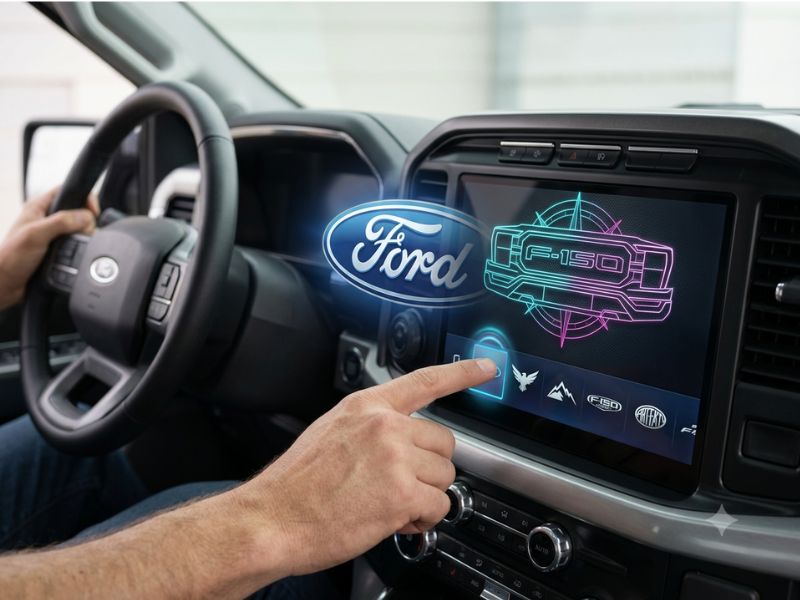
Before diving into specific methods, it’s crucial to understand the inherent customization capabilities of Ford’s Sync 4 system. Sync 4 is a powerful, cloud-connected infotainment platform designed for seamless integration and a user-friendly experience. However, like many modern vehicle systems, it prioritizes stability and security, which can sometimes limit direct user access to deep-level aesthetic changes.
Official Sync 4 Personalization Options
Ford officially provides several ways to personalize your Sync 4 experience, though these typically revolve around the interface after the startup sequence. These include:
- Wallpaper: You can upload custom images to serve as your background wallpaper on the Sync 4 screen. This is a straightforward process usually found within the display settings. While it doesn’t affect the startup screen, it significantly personalizes the main operating environment.
- Theme Colors: Sync 4 often allows you to select different color themes for menus and icons, matching your preference or even your vehicle’s interior lighting.
- Profile Settings: Driver profiles allow multiple users to have their own saved radio presets, navigation destinations, and sometimes even seat and mirror positions. This personalizes the overall driving experience but doesn’t alter the boot-up animation.
It’s important to note that a direct, user-friendly menu option to “change startup logo” or “customize boot animation” is generally not available within the standard Sync 4 interface. This is a key distinction that leads many owners to explore alternative avenues.
Why Startup Screens Are Often Fixed
Automotive manufacturers, including Ford, typically hardcode startup screens and animations for several reasons:
- Brand Identity: The startup logo reinforces the brand and model, ensuring a consistent experience across all vehicles.
- System Integrity: The boot sequence is critical for ensuring all vehicle systems initialize correctly and safely. Allowing users to easily modify this could potentially introduce vulnerabilities or instability.
- Regulatory Compliance: Certain aspects of the infotainment system, even aesthetic ones, might be subject to regulatory standards that require a fixed, tested boot process.
- Warranty Considerations: Unauthorized modifications to core system files could, in some interpretations, void parts of a vehicle’s warranty, particularly if issues arise that can be traced back to such changes.
Given these factors, any method for changing the Ford F-150 Sync 4 startup screen beyond official means will involve interacting with the system in ways not explicitly supported by Ford. This isn’t to say it’s impossible, but it frames the discussion around community-driven solutions and their inherent risks and rewards.
Exploring Methods to Change Ford Startup Screen F150 Sync 4
Since a direct menu option isn’t available, owners looking to customize their F-150 Sync 4 startup screen often turn to methods developed and shared by the enthusiast community. These typically involve interacting with the Sync system’s underlying software or configuration files. It’s crucial to approach these methods with caution and a clear understanding of what you’re doing.
Method 1: Using FORScan for Advanced Customization
FORScan is a powerful diagnostic and customization software widely used by Ford, Lincoln, and Mercury owners. It allows users to access and modify various parameters and configurations within their vehicle’s modules, including the infotainment system (APIM, or Accessory Protocol Interface Module). This is often the primary tool discussed when it comes to deeper Sync customizations.
What is FORScan?
FORScan is a Windows-based software (with limited iOS/Android versions) that, when paired with a compatible OBD-II adapter, allows you to:
- Read and clear diagnostic trouble codes (DTCs).
- View live sensor data.
- Perform module configuration and programming.
- Enable or disable various features that are often hidden or not accessible through standard menus.
It’s essentially a professional-grade tool made accessible to enthusiasts, but with that power comes responsibility.
How FORScan Relates to Startup Screens
Within the APIM module, there are specific “as-built” data parameters that control various aspects of the Sync system, including the boot-up animation and splash screen. Community members have identified certain byte values that correspond to different startup logos (e.g., Ford Oval, Raptor, Lincoln, etc.). By changing these values, you can potentially alter the displayed startup screen.
General Steps for Using FORScan (Conceptual)
- Acquire FORScan and an OBD-II Adapter: You’ll need a licensed version of FORScan (a free extended license is available for enthusiasts) and a high-quality, compatible OBD-II adapter (e.g., an ELM327-based adapter with MS-CAN/HS-CAN support, like an OBDLink EX or MX+).
- Connect to Your Vehicle: Plug the adapter into your F-150’s OBD-II port and connect it to your computer.
- Read As-Built Data: Launch FORScan, connect to your vehicle, and navigate to the APIM module. Read the “as-built” data to save a backup of your current configuration. This step is CRITICAL for recovery if something goes wrong.
- Identify the Relevant Parameter: Research community forums (like F150Gen14.com or FORScan.org) to find the specific APIM address and byte value associated with the startup screen you wish to change. This information is dynamic and can vary by Sync version and vehicle year, so always verify the latest findings.
- Modify the Parameter: Carefully change the identified byte value to the desired setting. FORScan will usually provide a checksum calculation, which you should allow it to perform.
- Write the Changes: Write the modified data back to the APIM module.
- Perform a Reset: Cycle the ignition or perform a soft reset of the Sync system as instructed by the community guide you are following.
Important Considerations for FORScan
- Risk of Bricking: Incorrectly modifying as-built data can potentially “brick” your APIM, rendering your Sync system inoperable. Always back up your original configuration.
- Warranty Implications: Ford may consider unauthorized FORScan modifications as tampering, potentially affecting warranty claims related to the infotainment system.
- Software Updates: Future Sync 4 software updates from Ford could potentially revert your changes or even cause conflicts with modified settings.
- Community Support: Rely heavily on active and reputable community forums for the most up-to-date and accurate information. Do not attempt this without thoroughly researching the specific steps for your F-150 model year and Sync 4 version.
Method 2: Sync 4 Modding Tools (Emerging Solutions)
As Sync 4 matures, the modding community continues to explore more user-friendly tools. While less common for startup screens specifically compared to FORScan, some developers are creating custom software or scripts that aim to simplify certain Sync customizations.
How These Tools Work (General Concept)
These tools often automate the process of modifying underlying Sync files or settings, sometimes by creating a custom USB update package or by providing a graphical interface to change parameters that FORScan accesses. They might leverage vulnerabilities or undocumented features to inject custom content.
Current Status and Availability
For Sync 4, these types of tools are still relatively nascent compared to the more established Sync 3 modding scene. Solutions for changing startup screens are typically still rooted in FORScan or similar low-level access. Any emerging tool would require significant vetting and community consensus regarding its safety and effectiveness.
Cautions with Modding Tools
- Trustworthiness: Only use tools from highly reputable sources within the Ford enthusiast community. Malware or poorly coded software could severely damage your vehicle’s electronics.
- Compatibility: Ensure the tool is explicitly designed for Sync 4 and your specific F-150 model year. Universal tools rarely work perfectly across all variations.
- Support: Understand that these are third-party solutions with no official Ford support. If something goes wrong, you’re reliant on the tool’s developer or the community.
Method 3: Professional Customization Services
For those uncomfortable with DIY FORScan or modding tools, some specialized automotive shops or mobile electronics installers may offer customization services. These professionals often have the necessary tools and expertise to perform such modifications.
What to Expect from a Professional Service
- Expertise: They should have experience with Ford Sync systems and FORScan.
- Cost: Expect to pay for their time and expertise.
- Guarantees: Inquire about any guarantees they offer for their work and what happens if something goes wrong.
- Limitations: Even professionals operate within the same technical constraints. They won’t be able to do something that’s fundamentally impossible or too risky.
Choosing a Reputable Professional
If you opt for this route, ensure the shop has a strong reputation, specific experience with Ford Sync 4, and understands the nuances of “as-built” data modifications. Ask for examples of their work or references if possible.
Preparing for Sync 4 Customization: Essential Steps and Precautions
Regardless of the method you choose to change your Ford F-150 Sync 4 startup screen, thorough preparation and adherence to safety protocols are paramount. This isn’t a casual modification; it involves interacting with core vehicle electronics.
1. Research Extensively
This is the most critical step. Do not proceed without thoroughly researching the specific steps for your exact F-150 model year and Sync 4 software version. Forums like F150Gen14.com, FORScan.org, and other dedicated Ford truck communities are invaluable resources. Look for:
- Verified Guides: Seek out guides that have been successfully followed by many users.
- Specific Parameters: Ensure you have the correct APIM module address and byte values for the startup screen you want. These can change between model years or Sync updates.
- Troubleshooting Information: Understand common issues and how to resolve them.
- Latest Information: Software evolves. What worked a year ago might not work today, or a safer method might have emerged.
2. Gather the Right Tools and Software
- FORScan Software: Download the latest stable version and obtain an extended license if needed.
- Compatible OBD-II Adapter: Invest in a high-quality adapter known to work well with FORScan and your F-150. Cheap, generic adapters can cause communication errors and potentially lead to issues. Look for adapters that support both HS-CAN and MS-CAN.
- Stable Computer: Use a reliable Windows laptop with a full battery or connected to power. Avoid using a computer with known stability issues.
- USB Drive (Optional): Some methods for Sync updates or modifications might require a USB drive formatted correctly (usually FAT32).
3. Backup Your Original Configuration
Before making ANY changes with FORScan, always, always, ALWAYS save a backup of your APIM’s “as-built” data. This is your lifeline if something goes wrong. If you brick your module, having this backup allows you to restore it to its original state.
- In FORScan, connect to your vehicle.
- Navigate to the APIM module.
- Select “Read All” or “Read As-Built Data” and save the file to a safe location on your computer and ideally a cloud backup.
4. Ensure Stable Power
Modifying vehicle modules requires a stable power supply. A voltage drop during a write operation can corrupt the module.
- Engine Off, Ignition On: Ensure your F-150’s engine is off, but the ignition is in the “ON” position (not just accessory mode).
- Battery Maintainer: If you plan to spend significant time making changes, connect a reliable battery maintainer to your F-150’s battery. This prevents the battery from draining and causing a voltage drop.
5. Understand the Risks
I cannot stress this enough: modifying your vehicle’s software carries inherent risks.
- Bricking the APIM: The most significant risk is rendering your infotainment screen inoperable, requiring a costly replacement.
- Warranty Issues: Ford may deny warranty claims for your Sync system if they detect unauthorized modifications.
- Unexpected Behavior: Even if the startup screen changes, there’s a small chance of unforeseen side effects or conflicts with other Sync features.
6. Work Methodically and Patiently
Do not rush. Double-check every value you intend to change. If you’re unsure about a step, stop and re-research. Patience is key to avoiding costly mistakes.
Common Startup Screen Options and Their Implications
When you delve into the world of changing your Ford F-150 Sync 4 startup screen, you’ll typically find options that replace the standard Ford Oval with other Ford-family logos or even custom images, though the latter is more complex.
Ford Family Logos
The most common and relatively “safer” modifications involve switching to another official Ford family logo. These are usually pre-programmed options within the Sync system’s as-built data, just not enabled by default for your specific trim.
- Raptor Logo: A very popular choice for F-150 owners, giving a more aggressive, performance-oriented boot screen.
- Lincoln Logo: Sometimes available, offering a more luxurious or minimalist startup.
- GT/Performance Logos: Depending on the Sync version, logos for other Ford performance vehicles might be accessible.
These changes are often just a single byte value modification in FORScan, making them relatively straightforward if you have the correct information. Since these are existing logos within the Ford ecosystem, they tend to be more stable and less prone to causing issues compared to fully custom images.
Custom Images/Animations (Advanced and Risky)
The desire to upload a completely custom image (e.g., a personalized logo, a family photo, or a unique graphic) as the startup screen is understandable. However, this is significantly more complex and carries higher risks for Sync 4.
- File Injection: This typically involves injecting new image files into the Sync system’s file structure, which is a much deeper modification than changing an as-built parameter.
- Format and Resolution: Custom images need to be in the correct file format, resolution, and sometimes even color depth to be compatible with the Sync system, which can be difficult to ascertain without developer tools.
- System Overwrites: Injecting files can overwrite critical system files if not done precisely, leading to system failure.
- Software Updates: Custom images are highly likely to be wiped out or cause conflicts with any future over-the-air (OTA) or dealer-installed Sync 4 software updates.
- Limited Success for Sync 4: While some success was seen with custom splash screens on older Sync versions (Sync 2/3), robust, widely available, and stable methods for injecting fully custom boot animations or images into Sync 4 are still very limited and often experimental. Most community efforts focus on changing to existing Ford family logos.
If your goal is a fully custom image, I would advise extreme caution and extensive research. The complexity and risk involved are substantially higher than simply switching to a different pre-existing Ford logo.
Maintaining Your Customized Sync 4 Startup Screen
Once you’ve successfully changed your Ford F-150 Sync 4 startup screen, you’ll want to understand how to maintain it and what to expect in the future.
Over-the-Air (OTA) Updates
Ford regularly pushes over-the-air (OTA) software updates to Sync 4 systems. These updates are designed to improve functionality, add features, and fix bugs.
- Potential Reversion: A significant OTA update, especially one that touches the APIM module’s core software, has the potential to revert your startup screen customization back to the factory default.
- Potential Conflicts: In rare cases, a modified setting could theoretically conflict with a new software update, leading to unexpected behavior. This is more likely with deeper, file-injection type modifications than simple as-built parameter changes.
- What to Do: If an update reverts your change, you may need to re-apply the FORScan modification. Always check community forums after a major Sync 4 update to see if others have experienced issues or if new parameters are required.
Dealer Service and Diagnostics
When you take your F-150 to a Ford dealership for service, they may connect to your vehicle’s diagnostic port. While most routine services won’t specifically look for startup screen changes, it’s something to be aware of.
- Diagnostic Tools: Dealer diagnostic tools can read the as-built data of your modules. If they see a deviation from the factory configuration for your VIN, they might flag it.
- Warranty Claims: If you have a warranty claim related to your infotainment system, a dealer might point to unauthorized modifications as a reason to deny the claim. This is a risk you accept when making these types of changes.
- Reversion by Dealer: A dealer might also, as part of a service update or repair, flash your APIM back to factory settings, which would erase your custom startup screen.
Reverting to Stock
Knowing how to revert your Sync 4 system back to its original factory startup screen is just as important as knowing how to change it. This is where your backup of the “as-built” data becomes invaluable.
- Using FORScan: If you saved your original as-built data, you can use FORScan to write that original configuration back to the APIM module. This should restore everything to its factory state, including the startup screen.
- Factory Reset (Limited): A factory reset within the Sync 4 menu will clear personal data, Bluetooth pairings, and some settings, but it typically does NOT revert as-built data changes. It’s a good first step for minor issues, but not for undoing FORScan modifications.
My advice is always to keep your original as-built backup file in a safe, accessible place. This provides peace of mind and a path back to stock if needed.
Conclusion
Personalizing your Ford F-150 is a rewarding experience, and for many, that extends to the digital interface of the Sync 4 system. While Ford doesn’t offer a direct, user-friendly menu option for how to change Ford startup screen F150 Sync 4, the enthusiast community has developed methods, primarily through tools like FORScan, to achieve this customization. I’ve outlined the process, the necessary tools, and, most importantly, the critical precautions you must take.
Remember, modifying your vehicle’s software carries inherent risks, including the potential to brick your infotainment system or affect your warranty. If you choose to proceed, do so with meticulous research, a reliable OBD-II adapter, a stable power source, and a complete backup of your original as-built data. For those uncomfortable with DIY modifications, seeking a reputable professional is a viable alternative. Ultimately, with careful planning and execution, you can transform your F-150’s initial greeting into a reflection of your personal style, making your truck truly feel like yours from the moment you hit the ignition.

